In short. Each model has a palette: the colors you paint with. In Paint, tap a color in the palette on the right; the big square shows it. Tap the palette’s name above the colors to choose another palette, or to make your own. The eyedropper picks a color from the model.
Pixel art keeps to a short list of colors, and Qwartz does the same: you paint with the colors of the model’s palette. This page covers the palette and the colors. Painting itself is in Pixel paint.
The palette
Choose Paint, the brush in the tool strip on the left (P on a Mac). The paint palette opens on the right: the paint tools at the top, the two colors, the palette’s name, and its colors.
- Tap a color to paint with it. It goes in the big square. If the eraser was on, the pencil comes back.
- The first swatch, with the checkerboard, is Clear: the pencil, fill and shapes then paint see-through pixels, the same as the eraser.
The palette belongs to the model and is saved in it, so the model opens with the same colors on any iPad or Mac. A new model starts with the palette chosen in Settings, DB32 unless you change it (see New models).
The two colors
The two squares under the tools are the color you paint with (the big one, in front) and a second color behind it. Tap them to swap the two, or press X on a Mac. Keep two colors you go back and forth between, such as a shade and its highlight, and swap with one tap.
The eyedropper
The eyedropper is the last of the paint tools. Tap the model with it: the color under it becomes the color you paint with, and the pencil comes back. On a face painted in Qwartz, it picks that exact color of the palette. On an image, such as an imported texture, it picks the palette’s closest color. On a see-through pixel, it picks nothing.
On a Mac, hold Option and click to pick a color with any paint tool. On iPad, you can set the Pencil’s double-tap or squeeze to Eyedropper in Settings (see Apple Pencil).
Choose another palette
Tap the palette’s name above the colors. On iPad, a sheet lists the palettes; on a Mac, a panel opens next to the palette.
- Built-in lists the palettes that come with Qwartz: PICO-8, Sweetie 16, Pastel Pop, DB16, DB32, Endesga 32, Vinik 24 and Resurrect 32, each with how many colors it has and a strip of them.
- My Palettes lists the ones you made or imported (see Import a palette).
Tap one to use it in this model. If nothing is painted yet, the model switches right away. If something is, Qwartz asks what to do with it:
- Keep the Artwork’s Colors repaints each pixel in the new palette’s closest color, so the model looks about the same.
- Recolor the Artwork keeps each pixel in its place in the list, so the model takes on the new palette’s colors: the first color becomes the new first color, and so on. It’s a quick way to try a model in other colors.
Either way, one step of undo takes it back. Images, such as imported textures, keep their colors: the palette only changes what’s painted in Qwartz’s own pixels.
Make your own palette
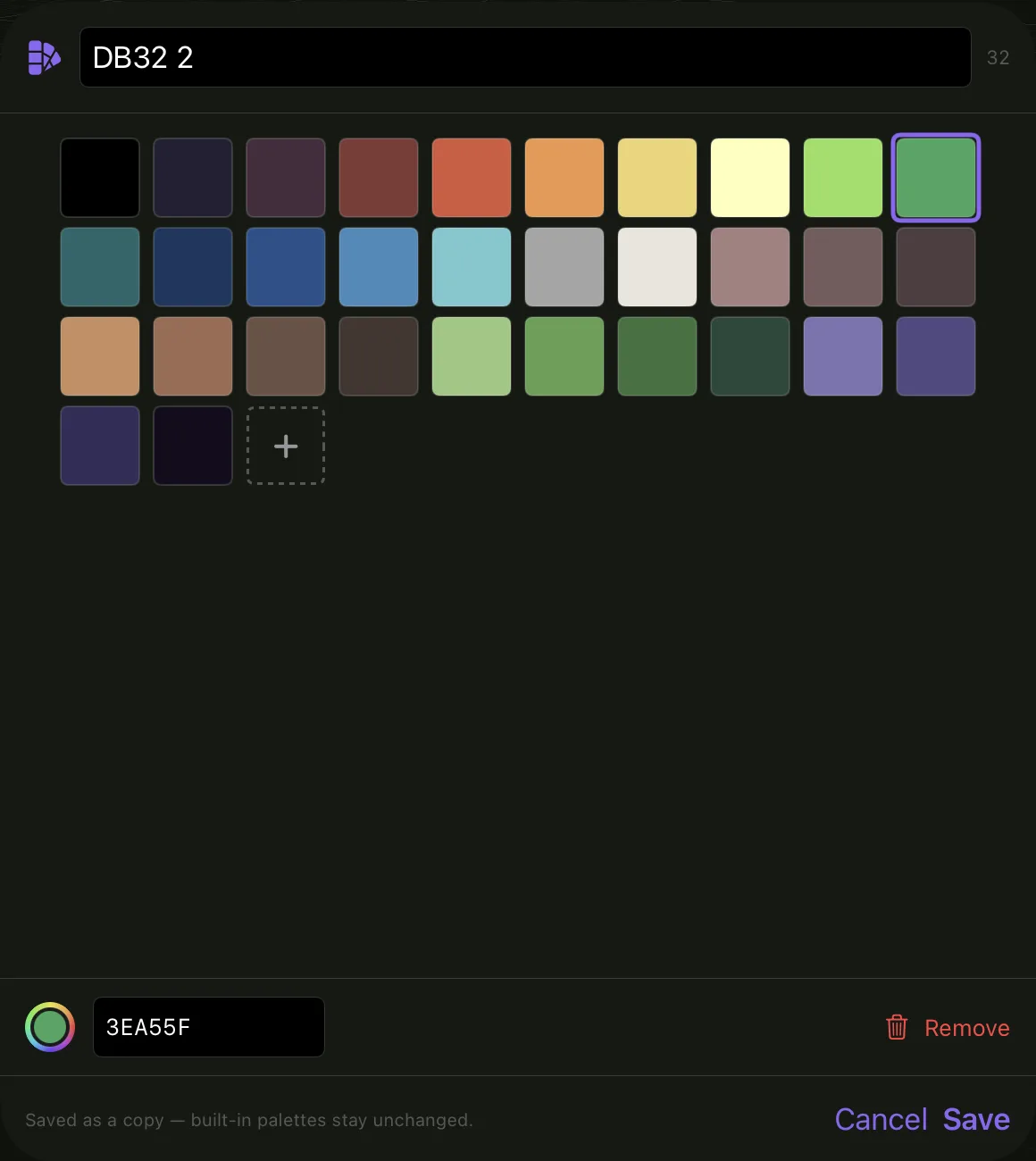
In the palette list, press New for a new palette, or Edit for the one the model uses. The ⋯ next to a palette has Duplicate & Edit… for a built-in one, and Edit… and Delete for your own.
- Give the palette a name at the top. The number next to it counts its colors.
- Tap a color to change it: use the color well, or type its hex code (such as
FF7AA8) and press Return. Remove takes it out. - + adds a color at the end, a copy of the one selected (white if none is), so a ramp of shades is quick to build. A palette holds up to 255 colors.
- Press Save.
Built-in palettes stay as they are: editing one saves a copy under a new name, such as “DB32 2”. Your palettes are kept on this iPad or Mac and show up in every model.
Editing the model’s own palette changes the model with it. A color you change repaints every pixel painted with it. A color you remove is replaced by the closest one left. Saving any other palette also makes it the model’s palette, the same as choosing it in the list: if something is painted, Qwartz asks first what to do with it.
Import a palette
Qwartz reads palettes saved by other apps. In the palette list, press Import Palette… and pick the file. It joins My Palettes, under the name saved in the file or the file’s own name, and the model switches to it, the same as choosing it in the list. It’s yours to edit like any palette you made.
Qwartz reads four kinds of file:
- .gpl, the GIMP palette, also used by Aseprite and Inkscape. Color names in the file are left out.
- .hex, one hex code per line, such as
FF7AA8or#FF7AA8. - .pal, the JASC palette from Paint Shop Pro, also saved by Aseprite. The binary Windows palette, also named
.pal, isn’t read. - .png, an image of the palette: each color it holds, once, read left to right and top to bottom. See-through pixels are skipped, so swatches on a clear background work.
A palette holds up to 255 colors. A file with more keeps its first 255, and Qwartz says so.
Many palettes made for pixel art are shared on Lospec, with downloads in all four formats.
In the palette editor, the import button next to the color count replaces the colors being edited with the file’s. A new palette also takes the file’s name. On Save, the painted pixels take the closest new colors, as they do for a color you remove.
New models and pixel density
Two settings apply to models you start later, not to the one that’s open. On iPad, find them in Settings… in the ⓘ menu, or with the gear on the home screen; on a Mac, in Qwartz → Settings… (⌘,).
- New Documents → Palette is the palette every new model starts with. If you delete the palette chosen here, new models start with DB32.
- Pixel Paint → Pixel density is how many pixels make one unit of length when you first paint an object: 8, 16 (the default), 32 or 64 px per unit. A higher density gives finer pixels. It’s set the first time you paint an object, in any model, and objects already painted keep theirs. Under it, Qwartz shows how many pixels one snap step covers with your grid: when it’s a whole number, snapped moves stay on pixel edges.
Something missing or unclear? Write to [email protected].