In short. Choose what you pick with the four buttons at the top: Object, Face, Edge or Vertex. Tap with the Pencil (or click on a Mac) to select. Then choose Move, Rotate or Scale in the tool strip on the left and drag a handle: the red, green and blue handles each work along one axis. Undo is at the top.
Everything you change in Qwartz starts with a selection: the action bar at the bottom and the panel at the top right always work on what’s selected. Getting around the view is in Getting around.
The four selection modes
The four buttons at the top of the view decide what a tap picks:
- Object (the cube) picks whole objects. Use it to move, duplicate, isolate or delete an object, or to give it a material.
- Face (the square) picks faces. Use it to extrude, inset or paint parts of a model.
- Edge (the line) picks edges, the lines between faces.
- Vertex (the dot) picks points, the corners where edges meet.
In Face, Edge and Vertex mode you work inside one object at a time. Picking something on another object moves the selection there.
When you switch mode, the selection follows. Going from Object to Face selects all the object’s faces; from Face to Edge or Vertex, the edges or corners of the selected faces. Going the other way keeps only what’s complete: from Vertex to Face, the faces whose corners are all selected.
The name of what’s selected shows at the top right: the object’s name, or a count such as 3 faces. The counts at the bottom of the view are for the selected object, or for the whole model when nothing is selected.
Select
With the Select tool (the arrow at the top of the tool strip):
| iPad (Apple Pencil) | Mac | |
|---|---|---|
| Select | Tap | Click |
| Add or remove | Touch and hold, then drag across: it adds, or removes if you start on something selected | Shift-click |
| Select a box | Choose Marquee, then drag | Drag across the view |
| Add a box | Shift-drag | |
| Select a loop | Double-tap an edge or a face | Double-click (Shift-double-click adds) |
| Select nothing | Tap an empty spot | Click an empty spot |
On iPad, your finger moves the camera, so taps on the model are the Pencil’s. To select with a finger, turn on Edit with finger in Settings (see Apple Pencil and finger).
Box selection
On iPad, choose Marquee, the dashed square under Select, and drag a box with the Pencil. On a Mac, drag across the view with the Select tool. A face is selected when all its corners are inside the box; an object when its middle is. In Face, Edge and Vertex mode, the box picks from the selected object only.
While Marquee is on, a Pencil drag draws a box instead of turning the view, and taps still select. Choose Select to turn it off.
Paint-select (iPad)
With the Select tool, touch the model with the Pencil, hold it still for a moment, then drag. Every face, edge or point you pass over is added to the selection, which keeps what was already selected. It’s the quickest way to pick an uneven group, such as the faces of a window frame.
To take things out of the selection, do the same starting on something that’s already selected: everything you pass over is removed, as in Photos. A touch and hold on one selected face, without dragging, removes just that face.
Loops
A loop is a ring that goes all the way round a shape. Double-tap an edge in Edge mode to select the ring of edges it belongs to, such as the belt round the middle of a box. Double-tap a face in Face mode to select the row of faces it’s part of: the row heads off through the side of the face you tap closest to. On a Mac, double-click, and Shift-double-click to add a loop to the selection.
X-Ray selection
X-Ray selection is on unless you turn it off, in View Settings (the eye in the toolbar). While it’s on, tapping a point or an edge and drawing a box also pick what’s behind the model’s front faces, so a box takes the back of the model too. Turn it off to pick only what you can see.
Hide and unhide
Hiding takes things out of the way while you work, without deleting them.
- Faces. In Face mode, select faces and press Hide in the action bar. While faces are hidden, an Unhide button sits next to it, with a badge that counts them: press it to bring them all back.
- Objects. In Object mode, select objects and press Hide. Show them again with the eye in the outliner.
On a Mac, press H to hide and Option-H to unhide.
The Inspector
The panel at the top right shows what’s selected. Tap its name to show or hide the details.
- Object: the Name, the Material, and the Position, Rotation and Scale. Press − or +, or tap a value and type a new one. Numbers follow your region: 0,25 where a comma is the decimal mark, and a point works too. With several objects selected, a value they don’t share shows as —, and − and + move each one by the same step. Apply Transform builds the position, rotation and scale into the object’s shape and sets them back to 0, 0 and 1: the object stays where it is, and its children too (on a Mac, Control-A). A negative scale, a mirror, is built in the same way: the faces still point outward, and painted pixels, UVs and tiles keep their look. Set Origin, under it, moves the object’s origin, the point it turns about, without moving the object: see Set the origin. A locked object shows Locked instead, and its values can’t change until you press Unlock Object.
- Face: the Material, the direction the face points (Normal), and Clear Paint when a face has pixel paint.
- Edge: its Length, and Loop Cut.
- Vertex: its Position.
In Face, Edge and Vertex modes, Set Origin to Selection moves the object’s origin to the middle of the selection.
The palette button next to the name opens the Materials panel. See Your own texture.
Move, rotate and scale
- Select what you want to change: objects, faces, edges or points.
- Choose a tool in the tool strip on the left: Move (the four arrows), Rotate (the circling arrows) or Scale (the diagonal arrows). On a Mac, press G, R or S.
- Drag a handle of the gizmo that appears on the selection.
The handles are colored by axis: red for X (left and right), green for Y (up and down) and blue for Z (front and back).
- Move: drag an arrow to move along that axis, or the grey cube in the middle to move freely, across the view.
- Rotate: drag a ring to turn round that axis.
- Scale: drag a handle to stretch along that axis, or the grey cube in the middle to scale evenly: up or right grows, down or left shrinks.
The selection stays under the Pencil (or the pointer) as you drag: the handle you hold follows it, however near or far the camera is. On a Mac, the grey cube works in Object mode only; in Face, Edge and Vertex mode, a click on it selects what’s under it.
The gizmo sits in the middle of the selection. If the handles are hard to grab, make them bigger with Gizmo size in Settings. To go back to tapping without moving anything by accident, choose Select.
For exact values, type them in the Inspector.
Snap and grid
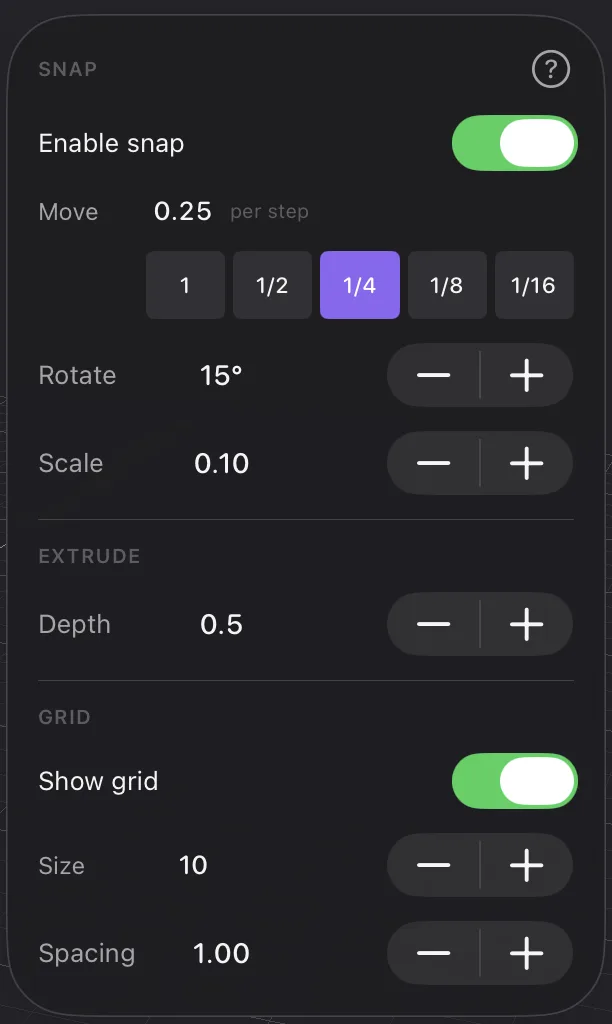
Snapping is on unless you turn it off: moves go in steps of a quarter of a grid square, turns in steps of 15°, and scaling in steps of 0.1. That keeps edges lined up and pixel paint crisp. Change it with Snap & Grid (the grid button) in the toolbar:
- Enable snap turns snapping on and off.
- Move sets the step as a part of one grid square: 1, 1/2, 1/4, 1/8 or 1/16. The size of a step is shown above them.
- Rotate and Scale set their steps.
- Depth, under Extrude, is how far Extrude pushes faces out.
- Show grid shows the floor grid. Size is how far it reaches, and Spacing the size of a square.
With a grid spacing of 1 and Move at 1/4, one step is 4 pixels at the standard pixel density, so moved geometry stays on pixel edges. Settings shows this under Pixel density.
Undo and redo
Undo and Redo are the two curved arrows in the toolbar. On a Mac, press ⌘Z and ⇧⌘Z, or use the Edit menu. Each drag, stroke or button press is one step of undo, however long it lasted. Moving the camera, selecting and Isolate aren’t edits, so undo leaves them alone.
On a Mac, Delete removes what’s selected, the same as Delete in the action bar.